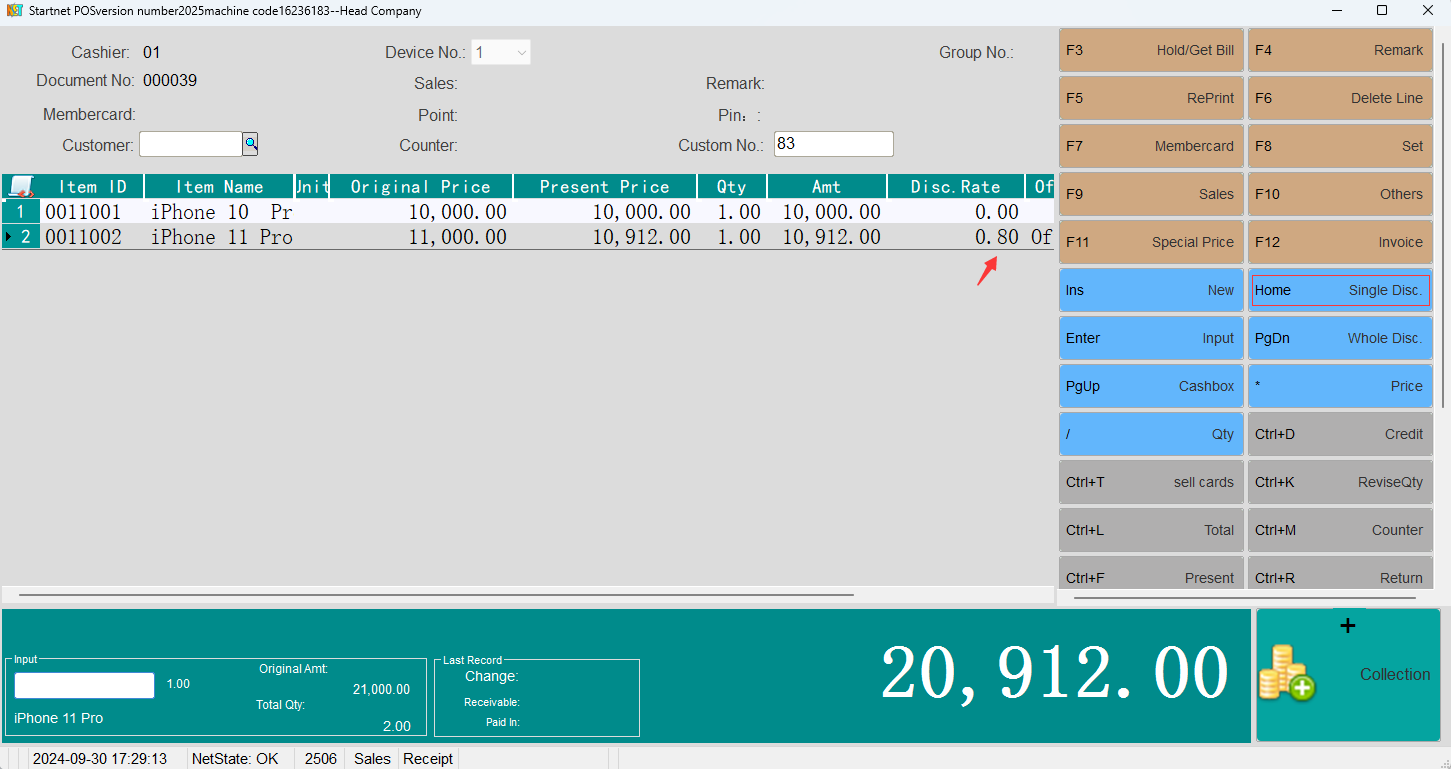
POS single item discount refers to offering discounts on individual products (such as promotions, member discounts, etc.) without affecting the prices of other products. And it is necessary to set the minimum discount rate for operators in the background to avoid arbitrary discounts.
1. Single item discount operation steps:
In the sales interface, use the up and down (↑↓) arrow keys to select the product that needs to be discounted. If not selected, the last product will be discounted by default. Enter the discount rate, directly enter a number (such as 50 for 50% off, 80 for 20% off), and the discount rate must be greater than or equal to the minimum discount rate set in the background. Press the HOME button to confirm, and the system will automatically calculate the discounted price.
2. Background operator permission settings
Open the network client → System management → User management → Select operator → POS permission settings. Enable the "Allow single item discount" function, select "Same discount for all products", and set the minimum discount rate. POS sales cannot be lower than this discount.